How to Choose the Right RAM for Your Computer: A Complete Buying Guide
Choosing the right RAM for your computer can make a noticeable difference in performance, especially when multitasking, gaming, editing videos, or running demanding applications. However, RAM is not simply about buying the largest capacity available. Compatibility, memory generation, speed, latency, and the number of modules all matter.
Whether you are upgrading an existing PC or building a new computer, understanding these factors will help you avoid compatibility problems and unnecessary spending. In this guide, we will explain how to choose the right RAM for your computer, what specifications to check, and how much memory you actually need.
1. Check Your Motherboard Compatibility
Before buying RAM, check your motherboard’s specifications. Every motherboard supports specific RAM generations, capacities, and speeds. For example, a motherboard designed for DDR4 memory cannot normally use DDR5 RAM because the physical design and electrical requirements are different.
Look at your motherboard manual or the manufacturer’s website to determine which memory type is supported. You should also check the maximum amount of RAM and supported memory speed. This simple step prevents one of the most common RAM-buying mistakes: purchasing memory that physically or electronically cannot work with your computer.
2. Identify the Correct RAM Generation
RAM comes in different generations, including DDR3, DDR4, and DDR5. DDR stands for Double Data Rate, and each newer generation generally offers improvements in bandwidth and efficiency.
DDR4 remains common in many computers, while DDR5 is widely used in newer platforms. You cannot normally mix different generations in the same memory slots. Therefore, don’t choose RAM based only on its advertised speed or price. First determine whether your motherboard and processor platform support DDR4 or DDR5.
3. Decide How Much RAM You Need
RAM capacity is one of the most important factors when upgrading a computer. The right amount depends on how you use your system.
For basic web browsing, office work, streaming, and everyday tasks, 8GB can work, although 16GB provides a more comfortable experience. For gaming, productivity, programming, and heavier multitasking, 16GB to 32GB is a practical range. Content creators, professional editors, engineers, and users working with large projects may benefit from 32GB, 64GB, or more.
More RAM is useful when your applications actually need it, but excessive capacity does not automatically make every computer faster.
4. Consider Your Processor and Platform
Your CPU and motherboard determine much of your computer’s memory compatibility. Modern processors support particular RAM generations and memory speeds, and some platforms can take better advantage of faster memory than others.
Before purchasing RAM, check the processor manufacturer’s specifications and your motherboard’s qualified memory support. This is especially important for a new PC build because the CPU, motherboard, and RAM should be selected as a compatible combination rather than as separate components.
5. Understand RAM Speed
RAM speed is usually listed in MT/s, although memory is often casually advertised using terms such as MHz. Higher memory data rates can increase memory bandwidth, which may improve performance in certain workloads.
However, faster RAM isn’t always the best choice. The processor and motherboard must support the selected speed, and real-world performance varies depending on the application. Instead of automatically buying the highest-rated memory available, choose a speed that fits your platform and budget.
6. Pay Attention to CAS Latency
CAS latency, commonly shown as CL, describes how many memory cycles the RAM waits before delivering requested data under a specific timing configuration. Lower latency can be beneficial, but it should not be considered separately from memory speed.
For example, comparing RAM only by CL numbers can be misleading because a higher-speed kit with a slightly higher CL may still provide greater overall memory performance. When comparing two RAM kits, consider both data rate and timings rather than focusing on one specification.
7. Choose the Right Number of RAM Modules
Many desktop computers support dual-channel memory, allowing two compatible modules to operate together and increase available memory bandwidth. Because of this, a 2 × 8GB configuration can often be preferable to a single 16GB module when building a compatible dual-channel system.
Similarly, a 2 × 16GB kit can be an excellent option for a 32GB setup. Using matched modules from the same kit can reduce compatibility concerns and make configuring the system easier.
8. Check the Number of Available RAM Slots
Before purchasing memory, look inside your computer or check the motherboard specifications to determine how many RAM slots are available. Desktop motherboards commonly provide multiple DIMM slots, while laptops often use SO-DIMM memory or memory that is partially or completely soldered.
If all slots are already occupied, upgrading may require replacing existing modules. Planning ahead is particularly useful if you expect to increase RAM capacity later.
9. Desktop RAM vs Laptop RAM
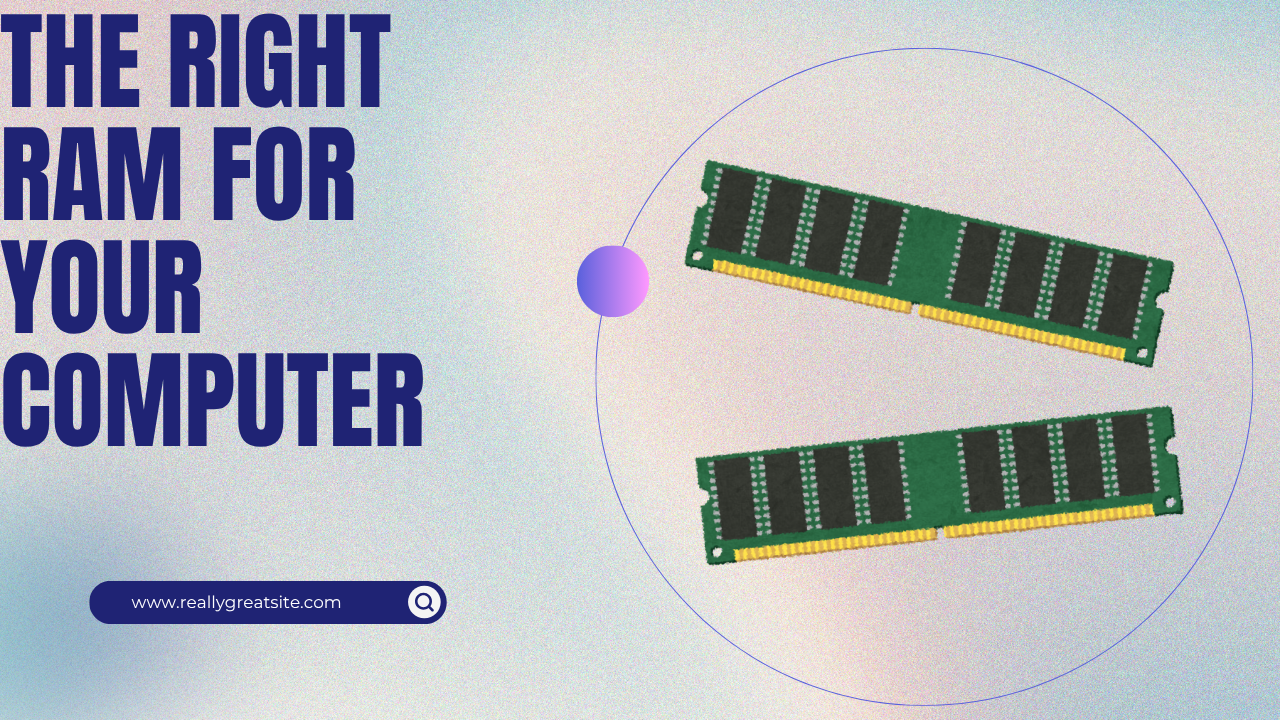
Desktop and laptop computers generally use different physical memory formats. Desktop systems typically use DIMMs, while laptops commonly use smaller SO-DIMMs.
Even if both modules use the same DDR generation, they are not interchangeable because their physical dimensions and form factors differ. Always confirm whether you need desktop DIMM or laptop SO-DIMM memory before ordering.
10. Check Your Computer’s Maximum RAM Capacity
Every motherboard or laptop has a maximum supported memory capacity. For example, a system might support 64GB, 128GB, or considerably more depending on its platform.
Installing more RAM than your computer supports can result in unused capacity or compatibility problems. Check the motherboard manufacturer’s specifications or your laptop’s official documentation before purchasing a large memory kit.
11. Think About Your Main Computer Usage
Your workload should determine your RAM requirements. Someone who mainly checks email and browses websites does not need the same memory configuration as a professional video editor.
Gamers should consider the requirements of modern games alongside background applications such as browsers and communication software. Creators working with high-resolution video, large photographs, 3D projects, or virtual machines may need substantially more memory.
Choosing RAM based on your actual workload gives you better value than simply buying the largest available capacity.
12. Choose RAM for Gaming
For a gaming PC, capacity, speed, and platform compatibility all matter. 16GB can be a reasonable starting point for many gaming systems, while 32GB offers additional headroom for newer games, multitasking, and demanding background applications.
Gaming performance can also depend on memory bandwidth and latency, particularly on systems where the processor benefits significantly from faster memory. However, upgrading the graphics card or CPU may provide a larger performance improvement if those components are already the system’s bottleneck.
13. RAM for Video Editing and Content Creation
Video editing, 3D rendering, graphic design, and other professional workloads can consume large amounts of memory. If you regularly work with large projects or high-resolution media, 32GB may be a sensible starting point, while 64GB or more can be valuable for demanding professional workflows.
The best capacity depends on the software you use, project sizes, and how many applications you run simultaneously. Monitor actual memory usage before deciding whether an upgrade is necessary.
14. Check RAM Compatibility Lists
Motherboard manufacturers often publish Qualified Vendor Lists (QVLs) containing memory kits that have been tested with particular boards. A QVL isn’t necessarily an exhaustive list of compatible RAM, but it can provide additional confidence when selecting a memory kit.
If stability is especially important, choosing a model listed by your motherboard manufacturer can reduce uncertainty. You should still verify the exact motherboard model and memory specifications before purchasing.
15. Understand XMP and EXPO Profiles
Many modern RAM kits include performance profiles that make it easier to run memory at advertised specifications. Intel XMP and AMD EXPO are examples of technologies used for configuring compatible memory settings.
Depending on your platform and motherboard, enabling an appropriate profile in the firmware may allow the RAM to operate at its rated performance instead of using a more conservative default configuration. Always verify that your motherboard and processor support the relevant profile.
16. Don’t Ignore RAM Voltage
RAM specifications can include operating voltage, which is particularly relevant when comparing performance-oriented memory kits. Higher-performance modules may use different voltage settings than standard memory.
For most users, there is no need to manually adjust RAM voltage. Instead, select a reputable kit designed for your platform and use the manufacturer’s recommended settings. Avoid changing advanced memory settings unless you understand their effect.
17. Choose a Reliable RAM Brand
Brand reputation matters because memory stability is more important than flashy specifications. Established manufacturers produce RAM kits with different capacities, speeds, timings, and price points.
When comparing products, look at warranty coverage, specifications, reviews, and compatibility rather than choosing solely by appearance. A reliable memory kit with sensible specifications is usually a better investment than an unknown kit with extreme numbers.
18. Consider RAM Heat Spreaders and RGB
Some RAM modules include metal heat spreaders, while gaming-oriented products may also feature RGB lighting. These features can improve appearance and, depending on the design, help with thermal management.
However, aesthetics should not be your primary purchasing factor. RGB lighting does not make RAM faster. If you have a compact CPU cooler or small PC case, also make sure tall RAM heat spreaders won’t interfere with your CPU cooler.
19. Avoid Mixing Different RAM Kits When Possible
Technically, computers can sometimes operate with memory modules from different brands or kits. However, mixing modules with different speeds, timings, capacities, or memory chips can create compatibility or stability issues.
For the most predictable results, purchase a matched kit with the total capacity you need. If you already have RAM installed, check whether adding another module or replacing the existing kit is the better approach.
20. Check RAM Upgrade Options Before Buying
If you’re upgrading an existing computer, first determine what RAM is already installed. You can check this through your operating system or by examining the physical modules.
Find out the current capacity, generation, speed, number of occupied slots, and maximum supported capacity. This information helps you decide whether to add memory or replace your existing modules entirely.
21. Don’t Buy RAM Based Only on MHz
One common mistake is assuming that the RAM with the highest advertised number is automatically the fastest or best choice. Memory performance depends on multiple factors, including data rate, timings, architecture, and the platform itself.
For example, two kits can have different combinations of speed and latency that produce relatively close real-world results. Focus on the complete specification rather than a single marketing number.
22. Consider Your Upgrade Budget
RAM should be balanced against the rest of your computer. Spending heavily on extremely fast memory may make little sense if your CPU or graphics card is entry-level.
A better strategy is to identify your workload, determine the appropriate capacity, choose a compatible speed, and then compare prices among reputable kits. This approach usually provides better value than paying extra for specifications you won’t notice.
23. RAM Capacity vs Speed: Which Matters More?
For most users, having enough RAM capacity is more important than choosing the absolute highest memory speed. If your system frequently runs out of available memory, adding capacity can provide a much larger improvement than moving to a slightly faster kit.
Once you have sufficient capacity, faster memory and tighter timings can provide additional performance depending on your CPU, applications, and workload. Therefore, prioritize capacity first and optimize speed second.
24. How to Choose RAM for a New PC Build
When building a new computer, start by selecting the CPU and motherboard platform. Then determine the supported memory generation, capacity, and recommended speeds.
For a general-purpose modern PC, 16GB can be a practical baseline, while 32GB offers more flexibility for gaming and productivity. From there, select a matched kit that fits your motherboard’s supported specifications and your budget.
25. How to Choose RAM for an Older Computer
Older computers may have limited support for newer memory standards. If your system uses DDR3, for example, installing DDR4 or DDR5 RAM isn’t a simple upgrade because the motherboard determines the supported memory generation.
Check the exact motherboard or laptop model before purchasing. For older systems, buying compatible used or older-generation RAM can sometimes be more economical than replacing the entire platform.
26. Common RAM Buying Mistakes to Avoid
Several mistakes can turn a simple RAM upgrade into an expensive problem. Buying the wrong DDR generation, exceeding the motherboard’s capacity, choosing the wrong physical form factor, or ignoring the number of available slots are common errors.
Another mistake is paying for extremely high memory speeds that your processor or motherboard cannot effectively use. Always verify compatibility first, then compare capacity, performance, reliability, and price.
27. A Simple RAM Buying Checklist
Before purchasing RAM, check these specifications:
- RAM generation: DDR4 or DDR5, depending on your platform
- Capacity: 16GB, 32GB, 64GB, or more based on workload
- Form factor: DIMM for desktops or SO-DIMM for most laptops
- Speed: Choose a platform-appropriate data rate
- Latency: Compare timings alongside speed
- Configuration: Prefer matched dual-channel kits when appropriate
- Compatibility: Check motherboard and CPU specifications
- Profiles: Look for XMP or EXPO support when relevant
- Warranty: Choose a reputable manufacturer
28. Final Thoughts on Choosing the Right RAM
Learning how to choose the right RAM for your computer doesn’t have to be complicated. The most important step is identifying your system’s compatibility requirements before comparing products. After that, choose enough capacity for your workload, select an appropriate speed and latency, and consider a matched memory kit for better compatibility.
For many users, 16GB is a practical starting point and 32GB provides greater headroom, while demanding professional workloads can justify 64GB or more. The best RAM isn’t necessarily the most expensive or fastest kit—it is the one that matches your computer, workload, and budget.